StarTech.com
Hukommelseskortlæser
FCREADMICRO
StarTech.com FCREADMICRO Brugsanvisning
Her er StarTech.com FCREADMICRO (Hukommelseskortlæser) brugervejledning. 2 sider på sprog med en vægt på 446,136.0 Mb. Hvis du ikke kan finde svar på dit problem Spørg vores community.
Side 1/2
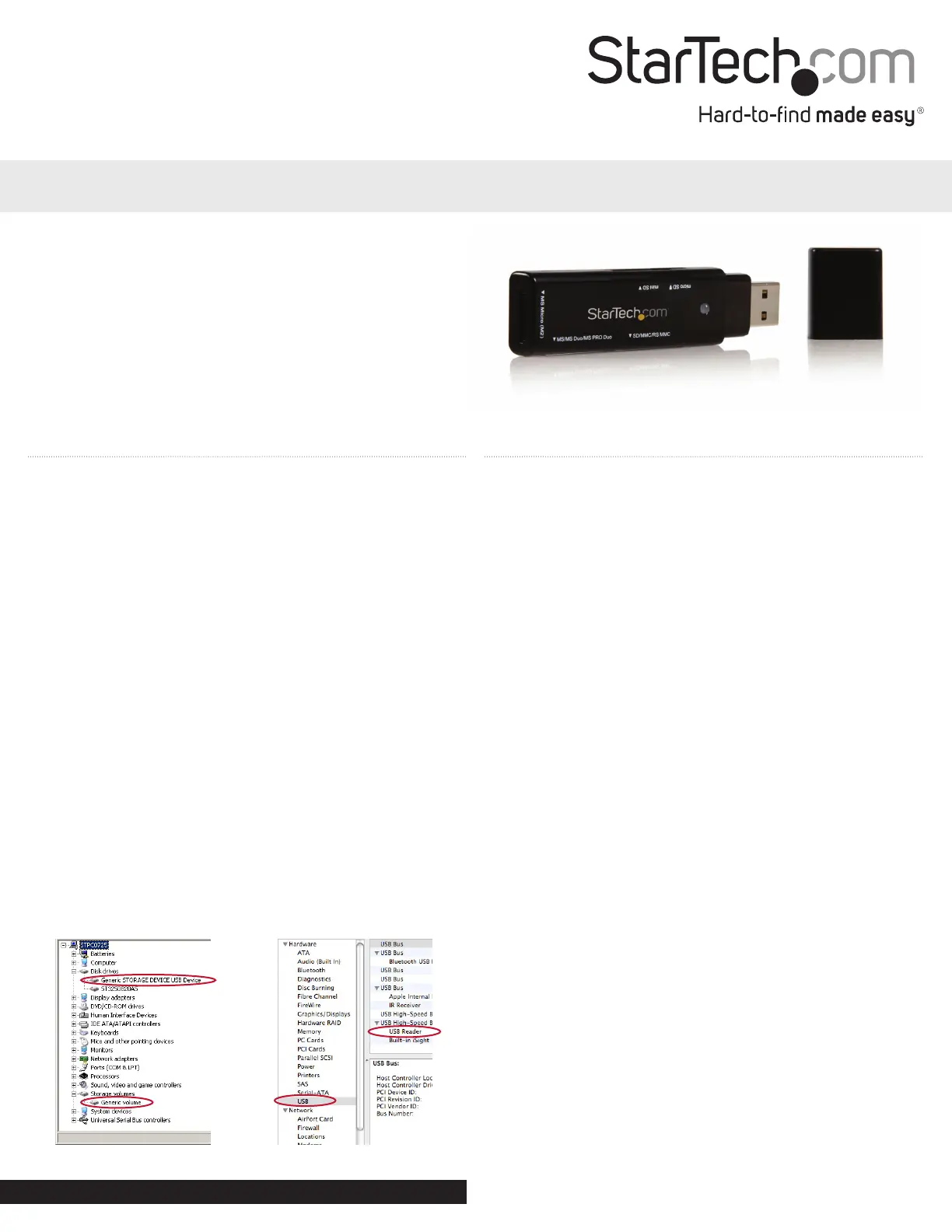
USB Multi Media Memory Card Reader Adapter
FCREADMICRO
DE: Bedienungsanleitung - de.startech.com
FR: Guide de l’utilisateur - fr.startech.com
ES: Guía del usuario - es.startech.com
IT: Guida per l’uso - it.startech.com
NL: Gebruiksaanwijzing - nl.startech.com
PT: Guia do usuário - pt.startech.com
Installation
1. Ensure the host computer is powered. Insert the FCREADMICRO
USB type ‘A’ connector into an available USB port on the host
computer.
2. The computer operating system will recognize that the Card
Reader has been connected, and will automatically install the
necessary drivers. Once the reader has been connected to the
computer, the red Connection LED will illuminate, until the
reader is removed from the computer, or the operating system is
instructed to eject the connected media.
To ensure the FCREADMICRO has been properly installed on the
host computer:
A. In a Windows® operating environment, browse to the Control
Panel and double-click on the System icon (Start -> Control
Panel -> System). Click on the Hardware tab, then on Device
Manager. Here, you will nd Generic Storage Device USB Device
listed under Disk Drives, and Generic Volume listed under Storage
Volumes.
B. In a MAC OS operating environment, browse to the System
Proler (Go -> Utilities -> System Proler). Click on Hardware,
then on USB. In the top right pane, click on USB High Speed
Bus; here, you will nd USB Reader listed.
Safe Removal
To prevent damage to the contents of the memory/media card,
please ensure you are following the correct procedure for removing
storage from the operating system you are using.
• In a Windows® operating environment, when the memory/
media card is rst connected, the Safely Remove Hardware icon
will appear. Right-click on the icon, and select Safely Remove
Hardware. When the Safely Remove Hardware window appears,
select USB Mass Storage Device, then click on Stop. This will, in
turn, open the Stop a Hardware Device window.
Select the USB Mass Storage Device again, and click on OK, then
wait for the operating system to notify you that it can now be
safely removed.
• In a MAC OS operating environment, the added memory cards
will appear on the desktop as disk drives. To safely remove the
indicated drive(s), simply click and drag the icon to the Trash.
A. B.
WARNING: Please note that when removing media cards
connected to FCREADMICRO, you are required to remove/
eject the device from within the operating system (i.e.
in Windows, use the Safely Remove Hardware function).
Failure to remove devices properly can result in lost data,
or permanent damage to the card or Card Reader. See Safe
Removal (reverse) for further detail.
Instruction Manual
*actual product may vary from photos
Manual Revision: 01/26/2012
For the most up-to-date information, please visit: www.startech.com
Problemløsning StarTech.com FCREADMICRO
Hvis du har læst manualen omhyggeligt, men ikke fundet en løsning på dit problem, bed andre brugere om hjælp
Specifikationer
| Bredde: | 20 mm |
| Højde: | 10 mm |
| Vægt: | 17 g |
| Brugervejledning: | Ja |
| Produktfarve: | Sort |
| Pakkevægt: | 47.5 g |
| Pakkedybde: | 114 mm |
| Pakkebredde: | 18 mm |
| Pakkehøjde: | 153 mm |
| Kompatible hukommelseskort: | MicroSD (TransFlash), MicroSDHC, MiniSD, MMC, MS Duo, MS Micro (M2), MS PRO, MS PRO Duo, MS Pro-HG Duo, RS-MMC, SD, SDHC, SDXC |
| Antal USB 2.0-porte: | 1 |
| Kabellængde: | 0.93 m |
| Understøttede Windows-operativsystemer: | Ja |
| Understøttede Mac-operativsystemer: | Ja |
| Understøttede Linux-operativsystemer: | Ja |
| Intern: | Ingen |